HTML Frame Structure
HTML Lesson 6: HTML Frame Structure
Frame structure in HTML
From the very beginning, it should be said that the technique of using a frame structure, although very convenient in some cases, is nevertheless not advisable for commercial projects.
Frameset element
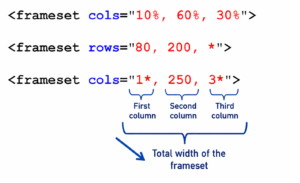
Syntax for vertical division (into columns):
where
nis the width of the frames in percent from left to rightSyntax for horizontal division:
where
nis the height of the frames in percent from top to bottomThere may be more than two frames in a structure.
A file with a frame structure is called a layout file and is usually named index.html
Let’s look at an example of how files are loaded into a frame.
Syntax:
Execution:
< html > < head > < title > Example < / title > < / head > < frameset cols = "25%, 75%" > < frame src = "menu.html" > < frame src = "content.html" > < / frameset > < / html > |
Create a file with a frame structure (file name index.html ) with three columns (width: 25%, 50%, * ). Create three files to load into frames and place them in the same folder as index.html: 1. menu.html (place the
h1 “Menu” heading in it ), 2. content.html (place the h1 “Content” heading in it ), 3. news.html (place the h1 “News” heading in it ).Change the layout from columns to rows (horizontal division), and look at the result.
Frameset tag attributes:
frameborder – value 1 or 0 (present or absent)
border – border size value
bordercolor – border color
framespacing – frame border width in pixels (IE only)
< frameset cols = "25%, 75%" frameborder = "1" bordercolor = "red" border = "1" > |
Frame element attributes:
name — frame name
noresize — prevents resizing for a specific frame
scrolling — controls scrolling within a single area ( yes, no, auto)
marginheight — sets the amount of frame indentation from the top and bottom edges of the page
marginwidth — creates margins on the left and right
frameborder — specifies whether a border around the frame is needed (0 and 1)
bordercolor — border color
Rules for creating links in frames in HTML
If you imagine a structure in which there is a frame with a site menu on the left, and a frame on the right intended for displaying the contents of the selected menu items, then the following problem becomes obvious:
When you click on a menu item, the content will be loaded into the same frame as the menu, and not into the frame located on the right.
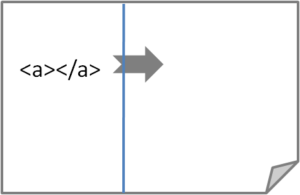
Important: To load a menu item into a specific frame, you must:
- add the name of the required frame using an attribute
name(in the layout file)Example:
- In the file with the menu, add the attribute to the hyperlink
targetExample:
Let’s look at the full code of both files:
Index.html file
< html > ... < frameset cols = "25%, 75%" > < frame src = "menu.html" > < frame src = "content.html" name = "mainFrame" > < / frameset > < / html > |
Menu.html file:
< html > ... < body > < h2 > Menu : < / h2 > < ul > < li > <a href = "glava1.html" target = "mainFrame" rel = "noopener noreferrer" > Chapter 1 < / a > < / li > < li > <a href = "glava2.html" target = "mainFrame" rel = "noopener noreferrer" > Chapter 2 < / a > < / li > < / ul > < / html > |
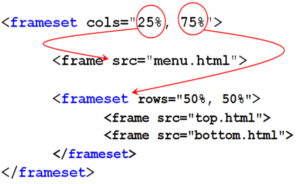
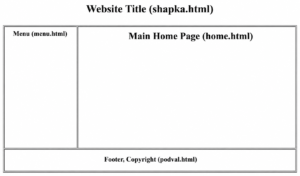
Nested frames
Working with frames in HTML also requires a more complex structure.
Let’s look at an example: What will the result be?
Inline (floating) frames
It is not advisable to use this type of frame in commercial projects, as they can be blocked by the browser and incorrectly perceived by search engines.
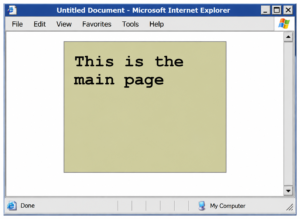
Example of a floating frame:
1 2 3 4 5 6 7 8 | < html > ... < body > ... < iframe src = "main.html" width = " 150" height = " 100" > </iframe> ... < / body > < / html > |
The frame will be inserted as a window of the specified dimensions (attributes width and height).
Additional attributes:
name— frame nameframeborder— frame boundaryscrolling— scroll barhspace— horizontal indentsvspace— vertical indentsmarginwidth— horizontal indentation of the inner page from the frame bordermarginheight— vertical indentation of the inner page from the frame border
iframе. 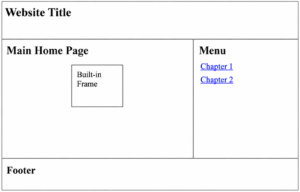
List of files:
index.html - Main layout with frame structure
shapka.html - Website name
menu.html - Menu
home.html - Main home page
podval.html - Bottom
inner.html - Inline frame
glava1.html - Chapter 1
glava2.html - Chapter 2
Explore More IT Terms
#
- Using an integrating factor
- Equations in total differentials
- Bernoulli's equation
- Linear differential equations of the first order
- 10 Mixed C++ Challenges to Test Your Skills
- 11 Tricky Non-Technical Questions to Ask in a Recruiting Interview
- 50 Terms Every Programmer Should Know
- 52 Java Thread Interview Questions
- 7 Levels of Using the Zip Function in Python
- 7 Python Code Bugs You Need to Fix
- 70+ Free Resources for Learning Programming
A
- A Comprehensive Guide to HTML and CSS
- A Comprehensive Guide to MODX CMS
- A computer science question tests your ability to work with IP addresses and network masks
- A Guide to SQL Query Formatting for Beginners
- A/B testing
- Abstract Data Type (ADT)
- AES Encryption Algorithm: How It Works and Where It's Used
- Agile
- Algorithm
- Algorithm Analysis
- Algorithm Complexity-Key Points
- Algorithm complexity: deep parsing O(log n)
- Algorithm vs. Program
- Algorithms and Data Structures in C#
- An overview of the C # programming language
- An overview of the Python programming language
- Anaconda Python
- Analysis of graphs and adjacency matrices question
- Android
- Android App Bundle
- Android SDK
- Angular
- Ansible
- Apache
- Apache Airflow
- Apache Kafka
- Apache Tomcat
- App Store
- AppCode
- Applications of microcontrollers: From simple circuits in electronics to complex systems
- Applications of the derivative
- Arduino: How to Program It: Basics for Beginners
- Array-based stack
- ArrayList
- ASCII
- ASP.NET
- Assembly Language Lessons
B
C
- C++ Lessons
- Cache
- Calculating Memory Capacity
- Character sets and encodings
- Characteristics of a good Algorithm
- Circular singly linked list
- Coding Tests with Answers
- Combinational Circuits Solved Questions
- Compiler
- Complexity of algorithms-Tutorial
- Computer Science Fundamentals Test with Answers (47 questions)
- Computer science tests with answers (More than 100 Questions)
- Constants
- Creating a Table in HTML
- Creating Forms in HTML
- Creating Lists
- Cybernetics and informatics
- Cycles
D
- Data Analytics: applications of data analysis in companies
- Data Engineer - Who is it, what does a data engineer do, and an overview of the profession
- Data modeling: what it is, types, and process steps.
- Data preprocessing: a complete guide for beginners and professionals.
- Data structure
- Data Structures and Algorithms (DSA)
- Data types vs. Data structures
- Database Tests with Answers
- Deep Learning
- Defining Aliases
- Defining Arrays
- Deque
- Detailed articles and tutorials on PHP
- Developing a Website from Scratch
- Differential Equations
- Differentiation of functions
- Digital data: understand the importance of this asset for businesses.
- Double integrals
- Doubly linked lists
- DSA Tutorial
E
F
G
H
- Handling errors and exceptions
- Heads or Tails? How Probability Theory Is Used in IT
- History of the development of computer science
- Homogeneous equations
- Homogeneous vs. non-homogeneous structures
- How to effectively organize your workflow
- How to Learn Java: Tips for Beginner Developers
- How to Learn PHP: A Beginner's Guide
- How to Use S3 Storage in Kubernetes with CSI
- HTML
- HTML and CSS: Definition, Application, and Operating Principles
- HTML and CSS. Layout from Scratch: What to Learn, Where to Learn, and How Long Will It Take?
- HTML Frame Structure
- HTML Link Formatting
- HTML Quizzes with Answers
I
- if..else construction
- Infinite sequences and series
- Information properties
- Inheritance in Java: A Complete Guide to Principles and Implementation
- Inserting an Image
- Integration of functions
- Interactive Python Tutorial – Learn Programming from Scratch
- Interpreter
- Interview Problem: Finding a Deleted Element in O(N)
- Interview Scare: The FizzBuzz Challenge
- Introduction to C++
- Introduction to Machine Learning
- Introduction to Networking | Network Fundamentals Part 1
- Introduction to Number Systems (Binary, Octal, Hexadecimal) | Math for CS Foundations #1
- IT Specialist Resume (CV)
J
K
L
M
- Machine Learning
- Machine Learning Basic Tool: NumPy
- Machine Learning Basic Tool: Pandas
- Machine Learning Mathematics
- Mathematics for programmers: what is really needed?
- MD5 encryption algorithm: What is it and why is it needed?
- Microcontroller and Microprocessor - what's the difference?
- ML Engineer: Who They Are, What They Do, How Much They Earn, and How to Become a Neural Network Specialist
- Monte Carlo Simulation: How It Works and What It's For
O
P
- PHP lessons
- Private DNS server and its configuration
- Program code
- Programmer's Dictionary
- Programming
- Programming with pseudocode
- Python Code Formatting Guide: PEP8
- Python for data analysis: how to do it and main libraries
- Python Lessons
- Python Superstar: 5 Ways to Use the * Operator
- Python vs. Julia: Should You Replace Python with Julia?
R
S
- SFML Graphics Library Tutorials
- Sorting Algorithms in Programming: Types, Descriptions, and Comparisons
- SQL commands: see what they are, what the main ones are + examples
- SQL Interview Questions and Tasks
- SQL Lessons
- SQL Stored Procedures
- SQL Syntactic Sugar: The COALESCE Function
- Stack
- Start in analytics: Python or R
- Static vs. dynamic data structures
- Statistical analysis: importance for decision making.
- String formatting in Python
- Structure of computer science
- Swift Lessons
- switch/match construct
- Syntax
T
- Terms in programming
- Text and paragraph formatting tags
- The Complete Guide to Bootstrap
- The Complete Guide to JavaScript
- The concept of information and its transmission
- The Future of Python: Key Trends and Insights from Global Researc
- The Infrastructure of Code: A Complete Guide to Repositories for Languages, Frameworks, and Compilers
- The pip package manager in Python
- The role of informatization in the development of society
- Transfers
- Tricky Java Questions Often Asked in Interviews
- Tutorials / Articles
- TypeScript: What It Is and Why Developers Need It
W
- What are databases, and why do they need DBMS and SQL?
- What do Linux distributions consist of?
- What is .NET and what is it used for?
- What is a data structure?
- What is a GPU in a computer, in simple terms?
- What is a quantum computer: 100,500 problems in one second
- What Is an Algorithm?
- What is Arduino: How it Works and the Platform's Capabilities
- What is Big Data? Introduction, Types, Characteristics, and Examples
- What is FizzBuzz Challenge?
- What is Golang and what is it used for?
- What is Haskell and what is it used for?
- What is Kotlin and what is it used for?
- What is Linux? The History of Linux
- What is machine learning, and how does it work?
- What is Power BI: everything about the data analytics software
- What is recursion, recursive and iterative process in programming?
- What is the C++ programming language?
- What is the OSI Model: A Complete Explanation of the Seven Layers and Their Role in Networking
- What's the difference between x86 and ARM processors?
- Where to start learning the C programming language?
- Which Linux distribution should you choose? A Linux distribution overview