
First Windows program. G++ compiler
Installing the compiler
Let’s look at creating our first simple C++ program using the g++ compiler, which is currently one of the most popular C++ compilers available for various platforms and distributed as part of the GCC compiler package. More information about g++ can be found on the project’s official website at https://gcc.gnu.org/.
The GCC compiler suite is distributed in various versions. For Windows, one of the most popular versions is the MSYS2 development kit from the non-profit project. It should be noted that MSYS2 requires a 64-bit version of Windows 7 or higher (meaning Vista, XP, and earlier versions are not compatible).
So, let’s download the MSYS2 installer from the official MSYS2 website :
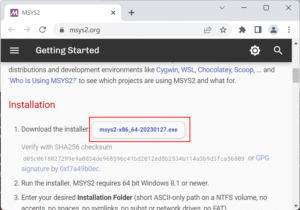
After downloading, run the installation program:
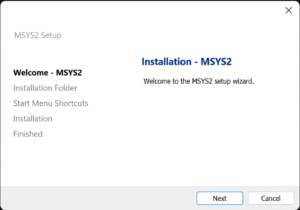
The first step of the installation will prompt you to set the installation directory. By default, this is C:\msys64:
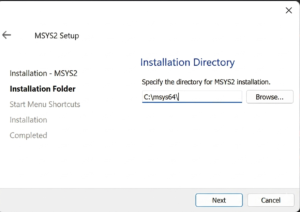
We’ll leave the default installation directory (you can change it if desired). The next step involves setting up the Start menu shortcut, and then the actual installation will occur. Once the installation is complete, a final window will appear, in which we click the Finish button.
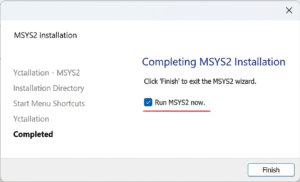
After installation is complete, the MSYS2.exe console application will launch. If for some reason it doesn’t launch, find the usrt_64.exe file in the C:/msys64 installation folder :
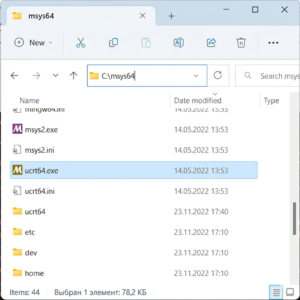
Now we need to install the GCC compiler suite itself. To do this, enter the following command in this application:
pacman -S mingw-w64-ucrt-x86_64-gccMSYS2 uses the Packman package manager to manage packages. This command tells packman to install the package mingw-w64-ucrt-x86_64-gcc, which represents the GCC compiler suite (the name of the package to be installed is specified after the parameter. -S).
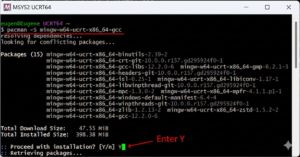
Once the installation is complete, we can begin programming in C++. If we open the installation directory and navigate to the C:\msys64\ucrt64\bin folder, we’ll find all the necessary compiler files there:
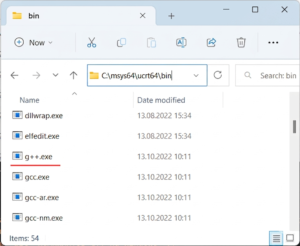
In particular, the g++.exe file will represent the compiler for the C++ language.
Next, to simplify launching the compiler, we can add its path to the Environment Variables. To do this, enter “edit environment variables for the current user” in the Windows search box:
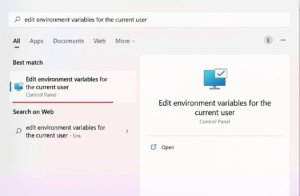
The Environment Variables window will open:
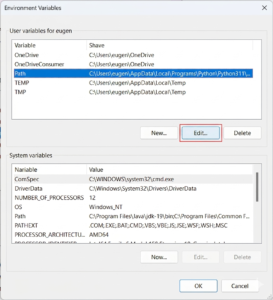
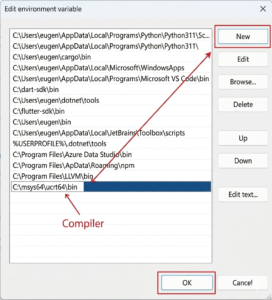
And add the path to the compiler. C:\msys64\ucrt64\bin:
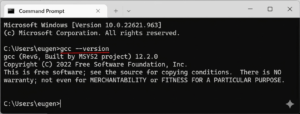
To verify that the GCC compiler suite has been installed successfully, enter the following command:
gcc --versionIn this case, we should see the version of the compilers
Creating the first program
So, the compiler is installed, and now we can write our first program. To do this, you’ll need a text editor to type the source code. You can use the popular Visual Studio Code editor or even the built-in Notepad.
So, let’s create a folder for source files on the C hard drive. In this folder, create a new text file and rename it hello.cpp. Essentially, C++ source code files are simply text files that typically have the cpp extension.
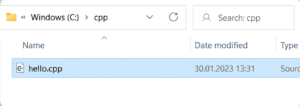
In my case, hello.cpp file is located in the C:\cpp folder.
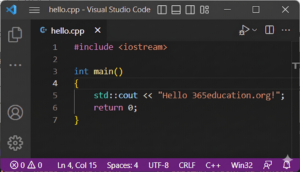
Now let’s define the simplest code in the hello.cpp file that will output a string to the console:
1 2 3 4 5 6 7 | #include <iostream> // header file iostreamint main() // define a function { // start of function std::cout << "Hello 365education.org!"; //we output a line to the console return 0; // exit the function} // end of function |
To output a string to the console, you need to enable the required functionality. To do this, add the following line at the beginning of the file:
1 | #include <iostream> |
This line represents a preprocessor directive that enables the iostream library. This library is needed to output a string to the console.
Next comes the definition of the main function. The main function must be present in any C++ program; it is where the application execution actually begins.
The main function consists of four elements:
- Return type. In this case, it is int. This type indicates that the function should return an integer.
- Function name. In this case, the function is called main.
- Parameter list. After the function name, there is a list of parameters in parentheses. However, in this case, the parentheses are empty, meaning the main function takes no parameters.
Function body. After the parameter list, the function body appears in curly braces. This is where the actual actions performed by the main function are defined.
1 2 3 4 | { std::cout << "Hello 365education.org!"; return 0;} |
The function body prints a string to the console. The standard output stream, std::cout, is used to access the console. Using the << operator, the string of characters to be printed is passed to this stream (in this case, the console itself), i.e., “Hello 365education.org!”
Finally, we exit the function using the return statement. Since the function must return an integer, the value 0 is specified after the return statement. Zero is used as an indicator of successful program completion.
After each statement in the C++ language, a semicolon is placed.
A comment accompanies each line. Anything written after the double slash // represents a comment. Comments are not compiled into the application and are not part of the program code; they serve only to describe it. Comments help you understand what the program does.
Now let’s compile this file. To do this, open the Windows command prompt and first use the cd command to navigate to the folder containing the source file:
cd C:\cppTo compile the source code, you need to pass the hello.cpp file as a parameter to the gcc compiler:
g++ hello.cpp -o helloThis optional parameter -o hellospecifies that the compiled file will be named hello.exe. If this parameter is omitted, the file will be named a.exe by default.
After running this command, an executable file will be compiled, which in Windows is named hello.exe by default. We can access this file, and in this case, the console will print the string “Hello 365education.org!”, exactly as specified in the code.
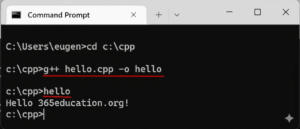
If you use the PowerShell shell instead of the command line, you need to write “./hello” to run the file.
It’s worth noting that we can combine compilation and execution with the following command:
g++ hello.cpp -o hello.exe & hello.exe
Explore More IT Terms
#
- Using an integrating factor
- Equations in total differentials
- Bernoulli's equation
- Linear differential equations of the first order
- 10 Mixed C++ Challenges to Test Your Skills
- 50 Terms Every Programmer Should Know
- 7 Levels of Using the Zip Function in Python
- 7 Python Code Bugs You Need to Fix
- 70+ Free Resources for Learning Programming
A
- A Guide to SQL Query Formatting for Beginners
- A/B testing
- Abstract Data Type (ADT)
- AES Encryption Algorithm: How It Works and Where It's Used
- Agile
- Algorithm
- Algorithm Analysis
- Algorithm Complexity-Key Points
- Algorithm complexity: deep parsing O(log n)
- Algorithm vs. Program
- Algorithms and Data Structures in C#
- An overview of the C # programming language
- An overview of the Python programming language
- Anaconda Python
- Android
- Android App Bundle
- Android SDK
- Angular
- Ansible
- Apache
- Apache Airflow
- Apache Kafka
- Apache Tomcat
- App Store
- AppCode
- Applications of microcontrollers: From simple circuits in electronics to complex systems
- Applications of the derivative
- Arduino: How to Program It: Basics for Beginners
- Array-based stack
- ArrayList
- ASCII
- ASP.NET
- Assembly Language Lessons
B
C
D
- Data Analytics: applications of data analysis in companies
- Data Engineer - Who is it, what does a data engineer do, and an overview of the profession
- Data modeling: what it is, types, and process steps.
- Data preprocessing: a complete guide for beginners and professionals.
- Data structure
- Data Structures and Algorithms (DSA)
- Data types vs. Data structures
- Database Tests with Answers
- Deep Learning
- Defining Aliases
- Defining Arrays
- Deque
- Developing a Website from Scratch
- Differential Equations
- Differentiation of functions
- Digital data: understand the importance of this asset for businesses.
- Double integrals
- Doubly linked lists
- DSA Tutorial
E
F
G
H
- Handling errors and exceptions
- Heads or Tails? How Probability Theory Is Used in IT
- History of the development of computer science
- Homogeneous equations
- Homogeneous vs. non-homogeneous structures
- How to effectively organize your workflow
- How to Learn Java: Tips for Beginner Developers
- How to Learn PHP: A Beginner's Guide
- How to Use S3 Storage in Kubernetes with CSI
- HTML
- HTML and CSS: Definition, Application, and Operating Principles
- HTML and CSS. Layout from Scratch: What to Learn, Where to Learn, and How Long Will It Take?
- HTML Frame Structure
- HTML Link Formatting
I
- if..else construction
- Infinite sequences and series
- Information properties
- Inheritance in Java: A Complete Guide to Principles and Implementation
- Inserting an Image
- Integration of functions
- Interactive Python Tutorial – Learn Programming from Scratch
- Interpreter
- Interview Problem: Finding a Deleted Element in O(N)
- Interview Scare: The FizzBuzz Challenge
- Introduction to C++
- Introduction to Machine Learning
- Introduction to Networking | Network Fundamentals Part 1
- Introduction to Number Systems (Binary, Octal, Hexadecimal) | Math for CS Foundations #1
- IT Specialist Resume (CV)
J
K
L
M
- Machine Learning
- Machine Learning Basic Tool: NumPy
- Machine Learning Basic Tool: Pandas
- Machine Learning Mathematics
- Mathematics for programmers: what is really needed?
- MD5 encryption algorithm: What is it and why is it needed?
- Microcontroller and Microprocessor - what's the difference?
- ML Engineer: Who They Are, What They Do, How Much They Earn, and How to Become a Neural Network Specialist
- Monte Carlo Simulation: How It Works and What It's For
O
P
- PHP lessons
- Private DNS server and its configuration
- Program code
- Programmer's Dictionary
- Programming
- Programming with pseudocode
- Python Code Formatting Guide: PEP8
- Python for data analysis: how to do it and main libraries
- Python Lessons
- Python Superstar: 5 Ways to Use the * Operator
- Python vs. Julia: Should You Replace Python with Julia?
R
S
- SFML Graphics Library Tutorials
- Sorting Algorithms in Programming: Types, Descriptions, and Comparisons
- SQL commands: see what they are, what the main ones are + examples
- SQL Interview Questions and Tasks
- SQL Lessons
- SQL Stored Procedures
- SQL Syntactic Sugar: The COALESCE Function
- Stack
- Start in analytics: Python or R
- Static vs. dynamic data structures
- Statistical analysis: importance for decision making.
- String formatting in Python
- Structure of computer science
- Swift Lessons
- switch/match construct
- Syntax
T
- Terms in programming
- Text and paragraph formatting tags
- The concept of information and its transmission
- The Future of Python: Key Trends and Insights from Global Researc
- The Infrastructure of Code: A Complete Guide to Repositories for Languages, Frameworks, and Compilers
- The pip package manager in Python
- The role of informatization in the development of society
- Transfers
- Tutorials / Articles
- TypeScript: What It Is and Why Developers Need It
W
- What are databases, and why do they need DBMS and SQL?
- What do Linux distributions consist of?
- What is .NET and what is it used for?
- What is a data structure?
- What is a GPU in a computer, in simple terms?
- What is a quantum computer: 100,500 problems in one second
- What Is an Algorithm?
- What is Arduino: How it Works and the Platform's Capabilities
- What is Big Data? Introduction, Types, Characteristics, and Examples
- What is FizzBuzz Challenge?
- What is Golang and what is it used for?
- What is Haskell and what is it used for?
- What is Kotlin and what is it used for?
- What is Linux? The History of Linux
- What is machine learning, and how does it work?
- What is Power BI: everything about the data analytics software
- What is recursion, recursive and iterative process in programming?
- What is the C++ programming language?
- What is the OSI Model: A Complete Explanation of the Seven Layers and Their Role in Networking
- What's the difference between x86 and ARM processors?
- Where to start learning the C programming language?
- Which Linux distribution should you choose? A Linux distribution overview