Creating a Table in HTML
HTML Lesson 5: Creating a Table in HTML
Creating a table in HTML
Let’s look at the tags for creating a table:
1 2 3 4 5 | < table > < tr > < td > contents < / td > < / tr > < / table > |
Result: Add a border to the table – attribute :
Contents
border
1 2 3 4 5 | < table border = "1" > < tr > < td > contents < / td > < / tr > < / table > |
Result:
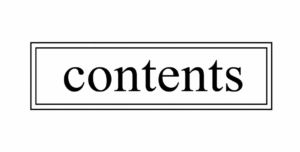
Creating a table begins with a tag table (from the English word “table”). The tag tris used to create a row. The row contains cells—the tag td. The table ends with a closing tag./table
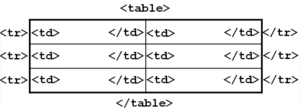
TABLE tag attributes
align | left— table to the left;center– table in the center;right— table to the right. |
width | 40050% |
bоrdеr | width |
bordercolor | frame colors |
сеllspacing | frame edge width |
cellpadding | internal distance to the frame |
bgсоlоr | Color |
bасkground | file (table background) |
th instead of td. The browser centers the contents of these cells and makes the font bold.TR tag attributes are strings
align | left, center,right | horizontal alignment |
valign | top, middle, bottom,baseline | vertical alignment |
bgcolor | color | background |
bordercolor | color | border color |
TD or TH tag attributes – cells
align | left, center,right | horizontal alignment |
valign | top, middle, bottom,baseline | vertical alignment |
width | number or percentage | cell width |
bgcolor | color | background color |
background | file | background file |
bordercolor | color | border color |
nowrap | causes the text inside the cell to be displayed without breaks, in one continuous line |
Important:
- The tag
captionis used to create a table header. - The tag is used to group header cells.
thead - To group the main content of a table, use the tag
tbody - The tag
tfootdefines the bottom of the table.
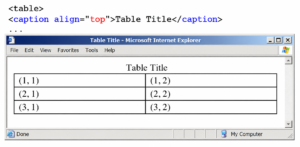
The table header tag caption can have an attribute that determines the header’s position — align with the following values:
top — header above the table,
bottom — header below the table,
left — header at the top and aligned left,
right — header at the top and aligned right. Unfortunately, not all values work in all browsers.
Execution:
1 2 3 4 5 6 7 8 9 10 11 12 13 14 15 16 | < table border = "1" > < caption > table < / caption > < thead > < tr > < th > Heading 1 < / th >< th > Heading 2 < / th > < / tr > < / thead > < tbody > < tr > < td > content < / td >< td > content < / td > < / tr > < / tbody > < tfoot > ... < / tfoot > < / table > |
Lab: Create a table using the template. The table must have a header and grouping areas ( thead is the first row of the table, tbody is the second and third rows of the table, and tfoot is the fourth row of the table).
| Column 1 | Column 2 | Column 3 | Column 4 |
|---|---|---|---|
| Row 2 Cell 1 | Row2 Cell2 | Row 2 Cell 3 | Row 2 Cell 4 |
| Row 3 Cell 1 | Row 3 Cell 2 | Row 3 Cell 3 | Row 3 Cell 4 |
| Row 4 Cell 1 | Row 4 Cell 2 | Row 4 Cell 3 | Row4 Cell4 |
Merging cells in a table
This is done using two attributes of the td tag: COLSPAN – merging cells horizontally, ROWSPAN – merging cells vertically.
COLSPAN syntax:

ROWSPAN syntax:

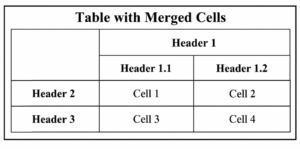
Execution:
1 2 3 4 5 6 7 8 9 10 11 12 13 14 15 16 17 18 19 20 21 | < table border = "1" > < caption > Table with merged cells < / caption > < tr > < th rowspan = "2" > < / th > < th colspan = "2" > Heading 1 < / th > < / tr > < tr > < th > Heading 1.1 < / th > < th > Heading 1.2 < / th > < / tr > < tr > < th > Heading 2 < / th > < td > Cell 1 < / td > < td > Cell 2 < / td > < / tr > < tr > < th > Heading 3 < / th > < td > Cell 3 < / td > < td > Cell 4 < / td > < / tr > < / table > |
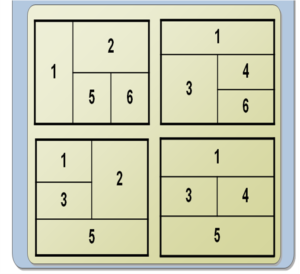
Cell grouping: COLGROUP
The element colgroup allows you to create groups of columns with the same properties.
Let’s look at an example:
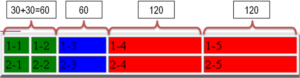
Execution:
1 2 3 4 5 6 7 8 9 10 11 12 13 14 15 | < TABLE border = "4" > < colgroup > < col span = "2" width = "30" style = "background-color: green" / > < col width = "60" style = "background-color: blue" / > < / colgroup > < colgroup style = "background-color:red" > < col span = 2 width = "120" / > < / colgroup > < TR > < TD > 1-1 < / TD >< TD > 1-2 < / TD >< TD > 1-3 < / TD >< TD > 1-4 < / TD >< TD > 1-5 < / TD > < / TR > < TR > < TD > 2-1 < / TD >< TD > 2-2 < / TD < TD > 2-3 < / TD >< TD > 2-4 < / TD < TD > 2-5 < / TD > < / TR > < / table > |
COLGROUP tag attributes
align | column content alignment
doesn’t work in Firefox |
dir | determines the direction of the characters:
doesn’t work in Firefox |
span | The number of columns to which the design will be applied (default 1) |
style | specifies an inline style sheet |
valign | vertical alignment in a table cell
doesn’t work in Firefox |
width | column width |
HTML nested tables
Tables with a complex structure are easier to replace with nested tables.
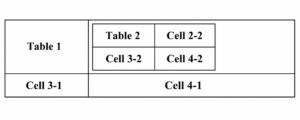
Execution:
1 2 3 4 5 6 7 8 9 10 11 12 13 14 | < TABLE border = "4" bgcolor = "yellow" > < tr > < td > Table 1 < / td > < td > < TABLE > < tr > < td > Table 2 < / td >< td > Cell 2-2 < / td > < / tr > < tr > < td > Cell 3-2 < / td >< td > Cell 4-2 < / td > < / tr > < / TABLE > < / td > < tr > < td > Cell 3-1 < / td > < td > Cell 4-1 < / td > < / tr > < / TABLE > |
Lab work: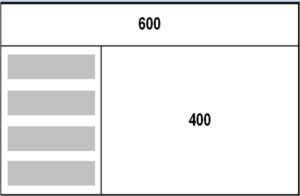
- Create a fixed-size table containing cells of the width shown in the figure.
- Insert a nested table into the bottom left cell
- Make the background of the nested table cells gray
Lab work: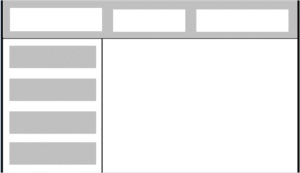
- Open the assignment completed in the previous lab
- Add another nested table to the top cell.
- Make the background of the nested table cells white
Explore More IT Terms
#
- Using an integrating factor
- Equations in total differentials
- Bernoulli's equation
- Linear differential equations of the first order
- 10 Mixed C++ Challenges to Test Your Skills
- 11 Tricky Non-Technical Questions to Ask in a Recruiting Interview
- 50 Terms Every Programmer Should Know
- 52 Java Thread Interview Questions
- 7 Levels of Using the Zip Function in Python
- 7 Python Code Bugs You Need to Fix
- 70+ Free Resources for Learning Programming
A
- A Comprehensive Guide to HTML and CSS
- A Comprehensive Guide to MODX CMS
- A computer science question tests your ability to work with IP addresses and network masks
- A Guide to SQL Query Formatting for Beginners
- A/B testing
- Abstract Data Type (ADT)
- AES Encryption Algorithm: How It Works and Where It's Used
- Agile
- Algorithm
- Algorithm Analysis
- Algorithm Complexity-Key Points
- Algorithm complexity: deep parsing O(log n)
- Algorithm vs. Program
- Algorithms and Data Structures in C#
- An overview of the C # programming language
- An overview of the Python programming language
- Anaconda Python
- Analysis of graphs and adjacency matrices question
- Android
- Android App Bundle
- Android SDK
- Angular
- Ansible
- Apache
- Apache Airflow
- Apache Kafka
- Apache Tomcat
- App Store
- AppCode
- Applications of microcontrollers: From simple circuits in electronics to complex systems
- Applications of the derivative
- Arduino: How to Program It: Basics for Beginners
- Array-based stack
- ArrayList
- ASCII
- ASP.NET
- Assembly Language Lessons
B
C
- C++ Lessons
- Cache
- Calculating Memory Capacity
- Character sets and encodings
- Characteristics of a good Algorithm
- Circular singly linked list
- Coding Tests with Answers
- Combinational Circuits Solved Questions
- Compiler
- Complexity of algorithms-Tutorial
- Computer Science Fundamentals Test with Answers (47 questions)
- Computer science tests with answers (More than 100 Questions)
- Constants
- Creating a Table in HTML
- Creating Forms in HTML
- Creating Lists
- Cybernetics and informatics
- Cycles
D
- Data Analytics: applications of data analysis in companies
- Data Engineer - Who is it, what does a data engineer do, and an overview of the profession
- Data modeling: what it is, types, and process steps.
- Data preprocessing: a complete guide for beginners and professionals.
- Data structure
- Data Structures and Algorithms (DSA)
- Data types vs. Data structures
- Database Tests with Answers
- Deep Learning
- Defining Aliases
- Defining Arrays
- Deque
- Detailed articles and tutorials on PHP
- Developing a Website from Scratch
- Differential Equations
- Differentiation of functions
- Digital data: understand the importance of this asset for businesses.
- Double integrals
- Doubly linked lists
- DSA Tutorial
E
F
G
H
- Handling errors and exceptions
- Heads or Tails? How Probability Theory Is Used in IT
- History of the development of computer science
- Homogeneous equations
- Homogeneous vs. non-homogeneous structures
- How to effectively organize your workflow
- How to Learn Java: Tips for Beginner Developers
- How to Learn PHP: A Beginner's Guide
- How to Use S3 Storage in Kubernetes with CSI
- HTML
- HTML and CSS: Definition, Application, and Operating Principles
- HTML and CSS. Layout from Scratch: What to Learn, Where to Learn, and How Long Will It Take?
- HTML Frame Structure
- HTML Link Formatting
- HTML Quizzes with Answers
I
- if..else construction
- Infinite sequences and series
- Information properties
- Inheritance in Java: A Complete Guide to Principles and Implementation
- Inserting an Image
- Integration of functions
- Interactive Python Tutorial – Learn Programming from Scratch
- Interpreter
- Interview Problem: Finding a Deleted Element in O(N)
- Interview Scare: The FizzBuzz Challenge
- Introduction to C++
- Introduction to Machine Learning
- Introduction to Networking | Network Fundamentals Part 1
- Introduction to Number Systems (Binary, Octal, Hexadecimal) | Math for CS Foundations #1
- IT Specialist Resume (CV)
J
K
L
M
- Machine Learning
- Machine Learning Basic Tool: NumPy
- Machine Learning Basic Tool: Pandas
- Machine Learning Mathematics
- Mathematics for programmers: what is really needed?
- MD5 encryption algorithm: What is it and why is it needed?
- Microcontroller and Microprocessor - what's the difference?
- ML Engineer: Who They Are, What They Do, How Much They Earn, and How to Become a Neural Network Specialist
- Monte Carlo Simulation: How It Works and What It's For
O
P
- PHP lessons
- Private DNS server and its configuration
- Program code
- Programmer's Dictionary
- Programming
- Programming with pseudocode
- Python Code Formatting Guide: PEP8
- Python for data analysis: how to do it and main libraries
- Python Lessons
- Python Superstar: 5 Ways to Use the * Operator
- Python vs. Julia: Should You Replace Python with Julia?
R
S
- SFML Graphics Library Tutorials
- Sorting Algorithms in Programming: Types, Descriptions, and Comparisons
- SQL commands: see what they are, what the main ones are + examples
- SQL Interview Questions and Tasks
- SQL Lessons
- SQL Stored Procedures
- SQL Syntactic Sugar: The COALESCE Function
- Stack
- Start in analytics: Python or R
- Static vs. dynamic data structures
- Statistical analysis: importance for decision making.
- String formatting in Python
- Structure of computer science
- Swift Lessons
- switch/match construct
- Syntax
T
- Terms in programming
- Text and paragraph formatting tags
- The Complete Guide to Bootstrap
- The Complete Guide to JavaScript
- The concept of information and its transmission
- The Future of Python: Key Trends and Insights from Global Researc
- The Infrastructure of Code: A Complete Guide to Repositories for Languages, Frameworks, and Compilers
- The pip package manager in Python
- The role of informatization in the development of society
- Transfers
- Tricky Java Questions Often Asked in Interviews
- Tutorials / Articles
- TypeScript: What It Is and Why Developers Need It
W
- What are databases, and why do they need DBMS and SQL?
- What do Linux distributions consist of?
- What is .NET and what is it used for?
- What is a data structure?
- What is a GPU in a computer, in simple terms?
- What is a quantum computer: 100,500 problems in one second
- What Is an Algorithm?
- What is Arduino: How it Works and the Platform's Capabilities
- What is Big Data? Introduction, Types, Characteristics, and Examples
- What is FizzBuzz Challenge?
- What is Golang and what is it used for?
- What is Haskell and what is it used for?
- What is Kotlin and what is it used for?
- What is Linux? The History of Linux
- What is machine learning, and how does it work?
- What is Power BI: everything about the data analytics software
- What is recursion, recursive and iterative process in programming?
- What is the C++ programming language?
- What is the OSI Model: A Complete Explanation of the Seven Layers and Their Role in Networking
- What's the difference between x86 and ARM processors?
- Where to start learning the C programming language?
- Which Linux distribution should you choose? A Linux distribution overview