Source: Microsoft
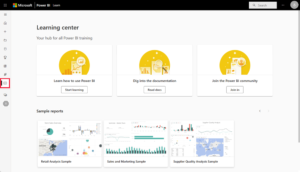
Power BI is a Business Intelligence (BI) tool developed by Microsoft, whose function is to gather large amounts of data from various sources and organize them into visually appealing, intuitive, interactive, and easy-to-understand reports.
It is already known that a data-driven culture, that is, a culture of companies that base their business strategies on real data, has become increasingly relevant for organizations.
To help implement this type of initiative in a business, BI processes are indispensable and are already part of the operations of many companies.
Currently, there are many Business Intelligence tools on the market, one of which is Microsoft Power BI.
The platform operates as a suite of software services with various components that integrate to organize data sources and transform them into reports and charts with useful and visually appealing information.
Microsoft Power BI is used by data professionals, such as analysts or data scientists, who can simplify large amounts of data, extracting valuable insights that will help in a company’s decision-making.
Thus, Power BI assists not only in the data analysis process but also in business decisions.
History of Power BI
The history of Power BI is directly related to another widely used Microsoft tool, Excel. Microsoft Excel has always been used to gather data and analyze it in a structured and efficient way.
However, changes have occurred over the years, leading Microsoft to realize that Excel’s capabilities were limited with regard to data analysis, business analysis, and Business Intelligence.
To address this demand, Microsoft developed other features such as Power Pivot and Power View, which were Excel integrations focused on analyzing large amounts of data and generating interactive reports and charts.
Thus, the creation of Power BI was the result of the gradual evolution of several Microsoft tools, which generated a complete solution for these needs.
Today, software, or rather, the set of software and applications, offers:
- A desktop version with various solutions involving data analysis, such as data cleaning, modeling, and visualization;
- A cloud service ( SaaS );
- A mobile application for Windows, iOS, and Android devices.
Power BI was officially launched in 2015. Today, the tool is one of the most widely used in the field of Business Intelligence and Data Analytics, and continues to be a complete solution for data-driven businesses.
Power BI is an easy-to-use tool that aims to simplify and make the process of data analysis and visualization intuitive and interactive.
Therefore, this BI platform can be used by any team, professional, or individual who wants to generate, consume, or collaborate on data reports and dashboards in a simplified and valuable way.
Some of the most common user profiles that utilize it are data analysts and scientists, BI analysts, stakeholders(parties interested in consuming the generated content, such as managers and administrators), etc.
However, various departments within a company can benefit from the tool to obtain useful information that helps their segments.
Therefore, any company or team that needs to create intuitive and informative data reports and use them to make business decisions can take advantage of the benefits and features of Power BI.
Advantages of Microsoft Power BI
Microsoft Power BI is a very popular tool for both data analysis and business applications.
The software offers many featuresand resources that optimize the process of connecting and processing data, making it more understandable and aiding in business decisions.
Therefore, some reasons that make this an interesting choice for companies are:
- Simple and quite intuitive, making it easy to use for different user profiles.
- Competitive prices and very affordable compared to other options on the market.
- Robust integrations with many other software, SaaS, and tools (including those from Microsoft);
- Connection to various databases and data sources;
- SaaS cloud tool (Power BI service)
- It offers data modeling capabilities.
- It is user-friendly for use on mobile devices.
- Adaptable to various company profiles (small, medium, or large);
- Highly intuitive, customizable, and interactive data visualization;
- Sharing and collaboration with other users available on the tool, etc.
Microsoft BI software components
Microsoft’s tool is comprised of several software services and applications that integrate with each other and are essential for using the platform.
The main components of Power BI are:
Power BI Desktop
Power BI Desktop is the Microsoft application that can be installed on your Windows computer (it does not support macOS or Linux) to begin using Power BI.
This application is where the entire process of connecting, cleaning, transforming, modeling, and visualizing data takes place.
Furthermore, it’s possible to create visuals, reports, and dashboards from it and share this information across other platform components.
Thus, Power BI Desktop provides several features, such as;
- Connecting data originating from various sources;
- Creating data models, defining hierarchies and relationships between different databases;
- Data cleaning and transformation ;
- Data visualization through interactive and intuitive graphical dashboards;
- Generating data reports;
- Information sharing, etc.
Power BI service (cloud service)
Power BI Service is the platform’s cloud service. SaaSis generally used as the next step after creating reports and dashboards in the desktop version.
This means that professionals using the Power BI Service can share reports and dashboards created with the desktop version, consume this content, and collaborate with stakeholders on the findings and insights generated.
Although its primary use is this, it’s also possible to use Microsoft’s BI SaaS to create reports and dashboards, just like in Power BI Desktop.
Furthermore, a very popular feature of the service is the Q&A – an instant question and answer resource in natural language, which allows the user to ask questions about the available reports and get clear answers to their queries.
Power BI Mobile
Power BI Mobile is another software integration that enables users to access reports and dashboards on their mobile devices.
The goal of the mobile application is to enable access to information generated by the resources of the desktop version or the SaaS, so that the user can access it whenever necessary through their mobile device.
The mobile version of the tool can be found on Android, iOS, and Windows devices, and it includes features such as interactive views, annotations, etc.
Two other components are part of Microsoft Power BI:
Power BI Report Server
The Power BI Report Server is a solution that allows you to install a server behind your company’s firewall.
This solution makes the tool’s report generation local and within the organization’s systems , preventing documents from being shared on cloud services such as Power BI Service.
However, if at any point the company decides to share reports and dashboards on SaaS (in the cloud), this is also possible, since the Power BI Report Server is compatible with the online version of the platform.
This solution is suitable for companies that need an on-premises BI tool for security reasons, sensitive information, or other specific organizational demands.
Power BI Report Builder
Power BI Report Builder is another component of Microsoft software. It allows the creation of paginated reports, meaning reports that follow a formatting pattern suitable for a single page.
Thus, with this feature, it is possible to create reports that will eventually be shared in page formats, such as a PDF, or even printed.
Many organizations need this feature to be able to share operational information, print rich forms, and more.
In other words, this is an additional component of the Power BI ecosystem and another way to generate business data reports and share relevant and detailed information with stakeholders.
The main features of Power BI
Microsoft’s platform offers many features for a variety of business objectives. Some of these include:
Grouping of unrelated data
Power BI allows users to bring together diverse, unrelated data sources in one place.
By combining this data, it’s possible to create relationships between them in the way that best suits the user.
For example, it is possible to import data from Excel, the internet, local databases, other databases, and more, and create connections with this data within the platform.
Power Query
Power Query is a very important feature of the platform. It allows the user to clean and transform the data connected to the system.
Imagine Power Query as a large, messy wardrobe that needs tidying up. To do this, you’ll need to clean out the clothes, shoes, and other items in the closet, and only then put everything in its proper place.
The same applies when using Power BI. When importing data from different sources, it will be necessary to clean and transform it for business objectives before adding it to reports and dashboards.
With Power Query, you can edit, add, or remove elements from databases, such as blank columns or rows, eliminate irrelevant data, and do everything else necessary to make the information more polished, simplified, and understandable.
Data modeling
In addition to the features already mentioned, Power BI also offers data modeling capabilities, which are an essential part of the data analysis process.
The tool allows the user to create relational data models within the platform, establishing patterns appropriate to the objectives of the data analysis.
Thus, once the user has connected different data sources to the platform, they will be able to create custom tables, measures, and hierarchies that relate to other tables in the model.
Data visualization
Data visualization is a feature of the Microsoft BI ecosystem that makes the data analysis process more intuitive and visually appealing to those who will consume this information.
Using Power View – the platform’s data visualization tool – it’s possible to create visual dashboards in various formats and templates, translating databases into charts that are easier and more user-friendly to understand.
The visuals created are also interactive and customizable, allowing you to add filters, segmentations, and other important features to this process.
Creating reports and dashboards
With Power BI, it’s also possible to create reports and dashboards containing information extracted from databases and the entire data analysis process.
Thus, the user will be able to integrate this information into detailed reports with relevant business insights, as well as present and highlight the main elements in a visually appealing way through intuitive dashboards.
Information sharing
In addition to creating reports and dashboards, Power BI also enables the publication of information on the Power BI Service – the software’s cloud service.
Thus, reports and dashboards will be shared and made available to stakeholders, who will be able to collaborate and consume this information in the cloud.
If an organization wants to use Power BI Report Server, it can also share reports locally with stakeholders without needing to add them to the cloud service.
Integrations with other Microsoft tools
A great feature of Microsoft Power BI is its ability to integrate with various Microsoft and third-party tools.
This expands and makes the development of work on the platform more optimized and effective, since various data sources, resources, and tools can be used to enrich the process.
Some Power BI integrations include:
- Microsoft Azure;
- Microsoft Excel;
- Microsoft Power Automate;
- Microsoft SQL Server;
- Outlook;
- OneDrive for Business;
- Azure DevOps;
- Oracle;
- MySQL;
- PostgreSQL;
- Salesforce;
- Google Analytics, etc.
How to use Power BI to create reports and dashboards?
The workflow for using the platform to generate reports and dashboards involves several steps.
The most common use of the tool involves a workflow created in Power BI Desktop, which is then shared on the Power BI Service.
This process involves several steps, such as:
Data connection
So, after downloading and configuring Power BI Desktop, the first step is to import data from the different data sources you want to explore.
To do this, go to “Get data” and start the import process from data sources, such as Excel, MySQL, Google Analytics, and others. In this process, you will need to log into the accounts of the tools from which you will import the data using your authorized credentials.
Data cleaning and transformation
After importing the data, it’s time to clean and transform it, making it suitable for business needs.
Use the Power Query editor to clean your data. In this editor, you can and should delete tables, blank spaces, add, group, or modify data, etc.
At this stage, you must polish the data and prepare it for the next steps in the process.
Creating visual dashboards
Finally, with your data cleaned and transformed, it’s time to convert it into visuals.
Creating these charts allows the information you want to use to be grouped in a more visually appealing way, making it easier for those who will consume this material to understand.
You can create a visual in Power BI Desktop by clicking on “Visualizations” and then on “Create visual”.
This process is fully customizable, and the user can create or edit visuals in the way that best suits their needs.
Report development
Reports are a collection of visuals that contain various elements of the analyzed data. For example, multiple perspectives on the same subject, with relevant data presented in visual models.
It combines various pieces of information into a single document, with one or more pages, resulting in a detailed visual report containing key information on a given subject.
Information sharing
After creating your reports, you can share them on the Power BI Service. You can do this by clicking the “Publish” button on the home page of the desktop version of the platform.
From there, you will need to log into your Power BI Service account, and you can publish the report in whatever way you prefer: in your workspace, in shared workspaces, etc.
In Power BI Service, it’s also possible to view dashboards that contain various reports grouped into a single panel.
This will allow users to view dashboards and reports and interact with them in the way that is most convenient for them.
Is Power BI free?
Power BI offers both free and paid plans. The choice will depend on each case and involves understanding the business needs.
However, Power BI Desktop, where the most intensive part of the work is done, is free and can be downloaded on a Windows computer.
The tool, as we have already mentioned, offers many features for creating reports and information dashboards; however, to share them and collaborate with other users, it is necessary to obtain a license.
This is where the paid Power BI options come in: Power BI Pro and Power BI Premium.
Paid subscriptions are generally recommended for companies with larger structures that require a more robust data analytics ecosystem.
Therefore, it is up to each business to understand which plan best suits its business needs.
Examples of using Microsoft Power BI
Microsoft’s BI tool can be used in various segments and for many purposes.
Some examples of Power BI usage are in the Marketing and Sales, Logistics and Operations, Human Resources, Technology, and many other sectors. The way reports and dashboards are generated will vary depending on the sector and what is being analyzed.
For example, in the HR area, it is possible to create reports and dashboards on the number of hires over time, the percentage of talent retention, the types of hires, etc.
In the Marketing and Sales segment, it’s possible to create visual dashboards with information on competitive analysis, market opportunities, campaign performance, sales history, etc.
Similarly, Power BI is very useful for professionals on the Product team. For example, companies that work with different platforms (such as websites, software, and applications) can have a high volume of data. Establishing intelligent ways to process and interpret this data is fundamental to improving the user experience and generating value for the business.
The examples and ways to create reports and dashboards with the tool are numerous and fully customizable. To see other ways to use the software, you can visit the Power BI usage examples page on the Microsoft website.
Conclusion
In conclusion, Microsoft Power BI is an important ally in the business decision-making process.
This tool is capable of compiling and facilitating the understanding of often dense business information by generating reports and dashboards of relevant information in a fully customizable and visually appealing way.
Furthermore, it is very popular in the market because it is affordable, easy to use, and adds significant value to businesses.
Now that you’ve reached this point, you already know what Power BI is and why it’s an ideal tool for businesses that want to base their decisions on data, gaining a competitive advantage by using it to create more effective business strategies. How about talking to your team to understand if adopting it makes sense?