The pip package manager in Python
A guide to installing pip and using basic commands for working with Python libraries.
The command is entered inside. A command like this won’t work here. First, you need to exit the interpreter with the command:
When developing Python programs, installing and updating libraries is essential. The pip package manager can help with this.
Pip is a command-line tool that installs, updates, and removes third-party libraries from the PyPI repository. Without it, you’d have to install libraries manually: search for the desired package on the website, download the archive, unzip it, copy the files to Python directories, and then manually monitor for updates.
How to tell if pip is installed
First, make sure you have Python installed. In modern versions of Python ( starting with 3.4 ), pip is built in by default, but sometimes you need to install it separately or make it visible to the system. Therefore, first, check that everything is installed and working correctly.
Checking via terminal or command line
Open a terminal or command prompt and enter:
If pip is installed correctly, you will see a line like:
Two things are important here: the pip version number and the Python version at the end of the line. This will determine which Python interpreter this pip is linked to.
Checking pip installation via Python commands
Pip may be installed, but not added to your environment variables. In this case, you can check it using Python. In the terminal or command line, enter:
or (if you have Python 3 ):
If the answer is yes, then pip is ready to use.
You can also add it to your environment variables to call commands directly through pip:
On Windows
- Find out where Python is located. The path looks something like this:
C:\Users\Name\AppData\Local\Programs\Python\Python312\Scripts. The pip.exe executable file is located
inside the Scripts folder. - Copy the path to the Scripts folder.
- Open Environment Variables in System Settings.
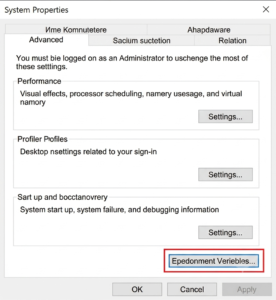
Find the PATH variable for the user and add the copied path.
- Close and reopen Command Prompt.
- Check:
- If the command works, you can install packages like this:
On macOS and Linux
On these systems, pip is often located in the ~/.local/bin folder or in the directory where Python is installed.
- Perform:
- If the command works, add the pip folder to your PATH variable via your shell configuration file (.bashrc, .zshrc, etc.).
- After changing, restart the terminal and check:
Pip not found
If you see the following message in response:
The system doesn’t find pip. Either it’s not installed, or:
- Pip is tied to a different Python interpreter
Sometimes you have multiple versions of Python installed on your system, and pip isn’t the version you’re currently using. Try running different commands:
Windows
macOS and Linux
If one of these commands shows the version of pip, then you need to install packages through it, for example:
- Pip is installed only in a virtual environment (venv)
Then the command works within the virtual environment and does not work in the “global” system.
Windows
Go to the project folder where the venv folder is located and run:
The environment name will appear at the beginning of the line. Now you can install libraries:
To exit the environment, enter:
If you need to install outside of the environment, run pip like this:
macOS and Linux
In the project directory, activate the environment:
Once activated, the pip command applies only to this environment:
Escaping from encirclement:
To install packages into the “global” Python, type:
Installing pip
If pip is not installed along with Python, you can install it manually.
On Windows
- Try installing pip via ensurepip.
Open cmd or PowerShell and type:
If the command runs without errors, check:
or:
If the version is displayed, pip is installed.
- If ensurepip didn’t work.
In this case, the safest way is to reinstall Python using the official installer.
- After that, check again:
or
On macOS
- Open the terminal.
- Check for Python:
- Try installing pip via ensurepip :
- If the command succeeded, check:
or
If ensurepip says the module is missing and pip still doesn’t work, it’s best to install pip through the Homebrew package manager or reinstall Python and then check again.
On Linux
On Linux, Python is often already installed, but pip is installed separately through a package manager. First, enter the following in the terminal:
Then check:
or
How to work with pip
Pip commands are entered in the terminal or command line. The examples are the same for Windows, macOS, and Linux. On Linux and macOS, python3 and pip3 are often used instead of python, but the logic remains the same.
What does the input line look like?
- Terminal or Command Prompt
On Windows:
On Linux and macOS:
- Python Interactive Console
If the line starts with
Python.
or Ctrl+Z and Enter on Windows, Ctrl+D on Linux and macOS.
After that, you can enter pip commands in the regular terminal.
pip commands
- Installing libraries with pip install
or
The command downloads the requests package from PyPI and installs it into the selected Python installation.
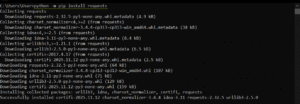
You can also specify a specific version:
Such restrictions help to lock in a specific version of a library in a project.
- Removing libraries with pip uninstall
To remove a package by name, enter:
After the command, pip asks for confirmation. Usually, just enter y and press Enter.

- List packages and get information with pip list and pip show
You can view all installed libraries via:
The command outputs a table with package names and their versions.
Find out details about a specific library:
In response, we will receive information about the request package:
Name — package name
Version — current version
Location — path to installation
Requires – list of dependencies
- Updating packages with pip install –upgrade
To update one library to the latest version, enter:
Pip downloads the latest version of the package and installs it over the old one.
- Working with multiple library versions
Sometimes, after updating a package, it doesn’t work as expected. To install a different version of the package (for example, requests ), run:
This command will remove the current version of the package and install the specified 2.30.0.
To remember which version your project is running, you can record it in the requirements.txt file. For example:
This is necessary so that in the future we can install all the packages from this file in a new environment using the command:
What is a requirements.txt file?
This is a regular text file that can be opened in any editor ( VS Code, Notepad, etc.). It is created in the project folder.
The requirements.txt file is used to store project dependencies. Each line describes one package and its version, for example:
How to install libraries from requirements.txt
To install all libraries from requirements.txt, open a terminal in the project folder and enter:
Pip will read the requirements.txt file, download the specified packages with the required versions, and add them to the current environment.
How to update pip itself
When a pip update is released, you can find out about it on the command line:

To do this, we will use the suggested command:
Pip will install the update:
The convenience of using pip is that if errors occur, the error line will detail the action plan for resolving the issue. For example, if the issue is a package version conflict, pip will indicate the correct
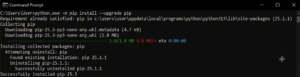 version, which should be entered into requirements.txt.
How to view and clear the pip cache
The pip cache is a folder where pip stores downloaded library files. Most often, these are files with the .whl extension (also called “wheels”). A wheel is a pre-built version of a package. Pip organizes it into folders, making installation faster than from source.
You can view the path to the cache directory using the command:
In response, pip will show the folder where it stores the “wheels” and archives.
How to clear cache
If installing libraries produces unspecified errors or the cache has grown significantly, you can clear it using the command:
After this, pip will remove all saved files. The next time you install packages, it will take longer because pip will download them again from PyPI, but you’ll eliminate any potential issues with the old cache.
Pip and virtual environments
We briefly mentioned venv above, where pip might be installed in the environment but not visible on the global command line.
Typically, packages are installed not into the “global” Python installation, but into a separate virtual environment. This ensures that dependencies of one project don’t interfere with others.
In a virtual environment, pip commands only work within the project. To access it, enter the following commands:
Windows
macOS and Linux
The environment name will appear at the beginning of the terminal line, for example:
Now you can enter regular commands:
When the work is finished, you can exit the environment:
After this, pip commands will again refer to the shared Python environment.
Explore More IT Terms
#
- Using an integrating factor
- Equations in total differentials
- Bernoulli's equation
- Linear differential equations of the first order
- 10 Mixed C++ Challenges to Test Your Skills
- 11 Tricky Non-Technical Questions to Ask in a Recruiting Interview
- 50 Terms Every Programmer Should Know
- 52 Java Thread Interview Questions
- 7 Levels of Using the Zip Function in Python
- 7 Python Code Bugs You Need to Fix
- 70+ Free Resources for Learning Programming
A
- A Comprehensive Guide to HTML and CSS
- A Comprehensive Guide to MODX CMS
- A computer science question tests your ability to work with IP addresses and network masks
- A Guide to SQL Query Formatting for Beginners
- A/B testing
- Abstract Data Type (ADT)
- AES Encryption Algorithm: How It Works and Where It's Used
- Agile
- Algorithm
- Algorithm Analysis
- Algorithm Complexity-Key Points
- Algorithm complexity: deep parsing O(log n)
- Algorithm vs. Program
- Algorithms and Data Structures in C#
- An overview of the C # programming language
- An overview of the Python programming language
- Anaconda Python
- Analysis of graphs and adjacency matrices question
- Android
- Android App Bundle
- Android SDK
- Angular
- Ansible
- Apache
- Apache Airflow
- Apache Kafka
- Apache Tomcat
- App Store
- AppCode
- Applications of microcontrollers: From simple circuits in electronics to complex systems
- Applications of the derivative
- Arduino: How to Program It: Basics for Beginners
- Array-based stack
- ArrayList
- ASCII
- ASP.NET
- Assembly Language Lessons
B
C
- C++ Lessons
- Cache
- Calculating Memory Capacity
- Character sets and encodings
- Characteristics of a good Algorithm
- Circular singly linked list
- Combinational Circuits Solved Questions
- Compiler
- Complexity of algorithms-Tutorial
- Constants
- Creating a Table in HTML
- Creating Forms in HTML
- Creating Lists
- Cybernetics and informatics
- Cycles
D
- Data Analytics: applications of data analysis in companies
- Data Engineer - Who is it, what does a data engineer do, and an overview of the profession
- Data modeling: what it is, types, and process steps.
- Data preprocessing: a complete guide for beginners and professionals.
- Data structure
- Data Structures and Algorithms (DSA)
- Data types vs. Data structures
- Database Tests with Answers
- Deep Learning
- Defining Aliases
- Defining Arrays
- Deque
- Detailed articles and tutorials on PHP
- Developing a Website from Scratch
- Differential Equations
- Differentiation of functions
- Digital data: understand the importance of this asset for businesses.
- Double integrals
- Doubly linked lists
- DSA Tutorial
E
F
G
H
- Handling errors and exceptions
- Heads or Tails? How Probability Theory Is Used in IT
- History of the development of computer science
- Homogeneous equations
- Homogeneous vs. non-homogeneous structures
- How to effectively organize your workflow
- How to Learn Java: Tips for Beginner Developers
- How to Learn PHP: A Beginner's Guide
- How to Use S3 Storage in Kubernetes with CSI
- HTML
- HTML and CSS: Definition, Application, and Operating Principles
- HTML and CSS. Layout from Scratch: What to Learn, Where to Learn, and How Long Will It Take?
- HTML Frame Structure
- HTML Link Formatting
I
- if..else construction
- Infinite sequences and series
- Information properties
- Inheritance in Java: A Complete Guide to Principles and Implementation
- Inserting an Image
- Integration of functions
- Interactive Python Tutorial – Learn Programming from Scratch
- Interpreter
- Interview Problem: Finding a Deleted Element in O(N)
- Interview Scare: The FizzBuzz Challenge
- Introduction to C++
- Introduction to Machine Learning
- Introduction to Networking | Network Fundamentals Part 1
- Introduction to Number Systems (Binary, Octal, Hexadecimal) | Math for CS Foundations #1
- IT Specialist Resume (CV)
J
K
L
M
- Machine Learning
- Machine Learning Basic Tool: NumPy
- Machine Learning Basic Tool: Pandas
- Machine Learning Mathematics
- Mathematics for programmers: what is really needed?
- MD5 encryption algorithm: What is it and why is it needed?
- Microcontroller and Microprocessor - what's the difference?
- ML Engineer: Who They Are, What They Do, How Much They Earn, and How to Become a Neural Network Specialist
- Monte Carlo Simulation: How It Works and What It's For
O
P
- PHP lessons
- Private DNS server and its configuration
- Program code
- Programmer's Dictionary
- Programming
- Programming with pseudocode
- Python Code Formatting Guide: PEP8
- Python for data analysis: how to do it and main libraries
- Python Lessons
- Python Superstar: 5 Ways to Use the * Operator
- Python vs. Julia: Should You Replace Python with Julia?
R
S
- SFML Graphics Library Tutorials
- Sorting Algorithms in Programming: Types, Descriptions, and Comparisons
- SQL commands: see what they are, what the main ones are + examples
- SQL Interview Questions and Tasks
- SQL Lessons
- SQL Stored Procedures
- SQL Syntactic Sugar: The COALESCE Function
- Stack
- Start in analytics: Python or R
- Static vs. dynamic data structures
- Statistical analysis: importance for decision making.
- String formatting in Python
- Structure of computer science
- Swift Lessons
- switch/match construct
- Syntax
T
- Terms in programming
- Text and paragraph formatting tags
- The Complete Guide to Bootstrap
- The Complete Guide to JavaScript
- The concept of information and its transmission
- The Future of Python: Key Trends and Insights from Global Researc
- The Infrastructure of Code: A Complete Guide to Repositories for Languages, Frameworks, and Compilers
- The pip package manager in Python
- The role of informatization in the development of society
- Transfers
- Tricky Java Questions Often Asked in Interviews
- Tutorials / Articles
- TypeScript: What It Is and Why Developers Need It
W
- What are databases, and why do they need DBMS and SQL?
- What do Linux distributions consist of?
- What is .NET and what is it used for?
- What is a data structure?
- What is a GPU in a computer, in simple terms?
- What is a quantum computer: 100,500 problems in one second
- What Is an Algorithm?
- What is Arduino: How it Works and the Platform's Capabilities
- What is Big Data? Introduction, Types, Characteristics, and Examples
- What is FizzBuzz Challenge?
- What is Golang and what is it used for?
- What is Haskell and what is it used for?
- What is Kotlin and what is it used for?
- What is Linux? The History of Linux
- What is machine learning, and how does it work?
- What is Power BI: everything about the data analytics software
- What is recursion, recursive and iterative process in programming?
- What is the C++ programming language?
- What is the OSI Model: A Complete Explanation of the Seven Layers and Their Role in Networking
- What's the difference between x86 and ARM processors?
- Where to start learning the C programming language?
- Which Linux distribution should you choose? A Linux distribution overview