
Inserting an Image
Jump to Section:
HTML Lesson 4: Inserting an Image
Lesson objective: to introduce the possibilities of placing images in HTML
Placing an image in HTML
Image formats for posting on the website: .gif, .png-8, .png-24, .png-32, and .jpg (jpg is used if a high-quality photo is required)
Syntax:
img— an inline element with replaced content- The image file must be located in the same directory as the web page; otherwise, the attribute
srcmust specify the path to the file.
Example: place on page:
- prob.gif image, the file of which is located in the folder with the page,
- banner.gif image, the file of which is located in the folder one level above the current page (you need to exit the folder),
- Image from https://www.istockphoto.com/ban.jpg
Execution:
< html > ... < body > < p >< img src = "prob.gif" > < p >< img src = "../banner.gif" > < p >< img src = "https://www.istockphoto.com//ban.jpg" > < / body >< / html > |
img tag attributes
alt– signaturetitle– pop-up signature
Vertical alignment:
align="top"align="middle"align="bottom"
Horizontal alignment:
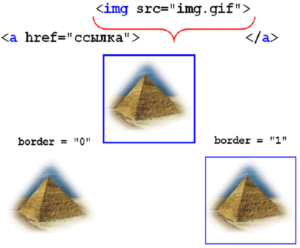
align="left"align="right"width— width (value in pixels)height— height (value in pixels)border— frame (value 0 or 1)
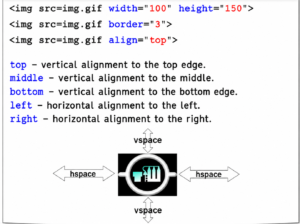
Image as a link
Page background image
Syntax:
< body background = "fon.gif" > |
The image will be replicated across the entire page. The value of the attribute will make the background static while the page is scrolled.bgproperties fixed
Explore More IT Terms
#
A
- A Guide to SQL Query Formatting
- A/B testing
- Agile
- Algorithm
- Algorithm complexity in 5 minutes
- Algorithms and Data Structures in C#
- An overview of the C # programming language
- An overview of the Python programming language
- Anaconda Python
- Android
- Android App Bundle
- Android SDK
- Angular
- Ansible
- Apache
- Apache Airflow
- Apache Kafka
- Apache Tomcat
- App Store
- AppCode
- Applications of microcontrollers: From simple circuits in electronics to complex systems
- Applications of the derivative
- Arduino: How to Program It: Basics for Beginners
- Array-based stack
- ArrayList
- ASCII
- ASP.NET
- Assembly Language Lessons
B
C
D
- Data Analytics: applications of data analysis in companies
- Data Engineer - Who is it, what does a data engineer do, and an overview of the profession
- Data modeling: what it is, types, and process steps.
- Data preprocessing: a complete guide for beginners and professionals.
- Data structure
- Data structures
- Deep Learning
- Defining Aliases
- Defining Arrays
- Deque
- Developing a Website from Scratch
- Differential Equations
- Differentiation of functions
- Digital data: understand the importance of this asset for businesses.
- Double integrals
- Doubly linked lists
E
F
H
- Handling errors and exceptions
- How to effectively organize your workflow
- How to Learn Java: Tips for Beginner Developers
- How to Learn PHP: A Beginner's Guide
- How to Use S3 Storage in Kubernetes with CSI
- HTML
- HTML and CSS: Definition, Application, and Operating Principles
- HTML and CSS. Layout from Scratch: What to Learn, Where to Learn, and How Long Will It Take?
- HTML Frame Structure
- HTML Link Formatting
I
- if..else construction
- Infinite sequences and series
- Inheritance in Java: A Complete Guide to Principles and Implementation
- Inserting an Image
- Integration of functions
- Interactive Python Tutorial – Learn Programming from Scratch
- Interview Problem: Finding a Deleted Element in O(N)
- Interview Scare: The FizzBuzz Challenge
- Introduction to C++
- Introduction to Machine Learning
- Introduction to programming languages
- IT Specialist Resume (CV)
J
K
M
- Machine Learning
- Machine Learning Basic Tool: NumPy
- Machine Learning Basic Tool: Pandas
- Machine Learning Mathematics
- Microcontroller and Microprocessor - what's the difference?
- ML Engineer: Who They Are, What They Do, How Much They Earn, and How to Become a Neural Network Specialist
- Monte Carlo Simulation: How It Works and What It's For
O
P
- PHP lessons
- Private DNS server and its configuration
- Programmer's Dictionary
- Programming with pseudocode
- Python Code Formatting Guide: PEP8
- Python for data analysis: how to do it and main libraries
- Python Lessons
- Python Superstar: 5 Ways to Use the * Operator
- Python vs. Julia: Should You Replace Python with Julia?
R
S
- SFML Graphics Library Tutorials
- Sorting Algorithms in Programming: Types, Descriptions, and Comparisons
- SQL commands: see what they are, what the main ones are + examples
- SQL Interview Questions and Tasks
- SQL Lessons
- SQL Stored Procedures
- SQL Syntactic Sugar: The COALESCE Function
- Stack
- Start in analytics: Python or R
- Statistical analysis: importance for decision making.
- String formatting in Python
- Swift Lessons
- switch/match construct
T
W
- What are databases, and why do they need DBMS and SQL?
- What do Linux distributions consist of?
- What is .NET and what is it used for?
- What is a GPU in a computer, in simple terms?
- What is Arduino: How it Works and the Platform's Capabilities
- What is Big Data? Introduction, Types, Characteristics, and Examples
- What is Golang and what is it used for?
- What is Haskell and what is it used for?
- What is Kotlin and what is it used for?
- What is Linux? The History of Linux
- What is machine learning, and how does it work?
- What is Power BI: everything about the data analytics software
- What is the C++ programming language?
- What is the OSI Model: A Complete Explanation of the Seven Layers and Their Role in Networking
- What's the difference between x86 and ARM processors?
- Where to start learning the C programming language?
- Which Linux distribution should you choose? A Linux distribution overview