
Go from Zero to Mastering SQL in Under 15 Minutes
In today’s lesson, I want to show you the basic SQL commands so you can start making queries and even creating relationships between tables. All this quickly, allowing you to go from zero to mastering SQL.
Throughout this lesson, we will use MySQL, which is a Database Management System (DBMS), and we will look at the SELECT, ORDER BY, WHERE, COUNT, SUM, GROUP BY, and JOIN commands.
These are basic, yet very important commands, because with them you will be able to create your queries and relate tables. So, come with me and go from zero to learning SQL today!
What is SQL, and what are databases?
SQL is a programming language used to manipulate data in databases.
Databases, in turn, are sets of tables that store information related to a specific business area. Companies typically use tables to manage data such as customers, product inventory, sales, and more.
The advantage of using SQL lies in its ability to store large amounts of information robustly and securely.
Created in the 1970s, SQL remains the most widely used language for interacting with databases. This trend is expected to continue in the coming years.
Database Management Systems – DBMS
Several programs are available for managing databases using SQL, such as SQL Server , MySQL , PostgreSQL , Oracle , Access , SQLite , and others.
As mentioned, throughout this lesson, I will be using MySQL, but the concepts learned here can be applied to any program you are using.
Database Structure
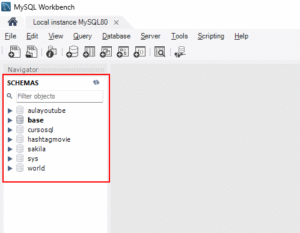
MySQL and other databases generally have a fairly similar structure. On the left side of the interface, we find information about the databases and the tables they contain.
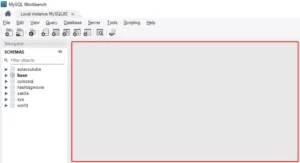
In the center, we have the area where we can write our SQL code.
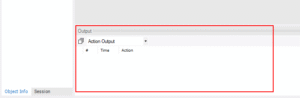
At the bottom of the screen, you can view the results of queries to the database tables.
Creating a Code Window
To begin our queries, the first step is to create a code window. Simply click the icon below File with the plus sign ( + ), and MySQL will automatically open a code window for you.

Hold down the Ctrl key and use the mouse scroll wheel to increase or decrease the size of the code window.
Selecting the Database
The next step is to choose the database we will work with. In this case, we will opt for the database called world, which is a pre-installed database in MySQL.
This database contains information about cities, country populations, and other relevant data.
To use it, simply right-click on it and select the option ” Set as Default Schema”.

The world database has three tables, with information about cities, countries, and the languages associated with each of them.

SELECT command in SQL – Selecting Data
We will select all the information from the city table; to do this, we use the SELECT command.
SELECT * FROM city;As a result of this query, we will have the table below, with all the columns and data present in the table, such as ID, city name, country code, district, and population.

It’s also possible to select only specific columns from the tables. Simply replace the asterisk in the command with the names of the desired columns.
SELECT name, population FROM city;
Therefore, we selected only these two columns. This is very useful when you don’t need to consider all columns for your analysis.
ORDER BY in SQL – Sort the Information
In addition to selecting the columns we want to view, we can sort the results displayed by the queries using the ORDER BY command.
SELECT * FROM city
ORDER BY population;

Note that, with this, our query returned the table of cities ordered from smallest population to largest.
If you want to sort in descending order, simply add the keyword DESC after population.
SELECT * FROM city
ORDER BY population DESC;

WHERE clause – Filtering Information
We’ve seen how to select only certain columns from a table, which can be useful for many analyses. However, in addition to that, it’s possible to filter the information contained in the table using the WHERE clause.
With it, we can define a condition, and only the information that matches it will be displayed.
For example, we can filter only the cities corresponding to Brazil ( BRA ).
SELECT * FROM city
WHERE countrycode = 'BRA';
This means we are selecting all the data from the city table where the countrycode column corresponds to the code for Brazil.

This query could also be combined with ORDER BY to, in addition to filtering, sort the cities by population, as we saw earlier.
COUNT command in SQL – Counting Items
SQL also has a very useful function for counting the number of records within a table. This can be used, for example, to calculate the number of cities registered in the city table.
To perform this count, we need to select the count from the name column of the table. The syntax for this is as follows:
SELECT COUNT(name) FROM city;

In other words, within this table, we have 4079 registered cities.
SUM in SQL – Summing Information
The COUNT function is useful for counting the information within a table. Now, if you need to sum specific values within a table, you will need to use the SUM function.
This function allows you to sum, for example, the population of all the cities listed. To do this, we perform a SELECT statement followed by the SUM function and the column we want to sum.
SELECT SUM(population) from city;
To make this value easier to visualize, we can divide it by 1 billion.
SELECT SUM(population)/1000000000 from city;
From this, we can see that the total population is 1.42 billion.
GROUP BY in SQL – Creating Groupings
We counted the total number of cities in the table, but it’s possible to group these values according to the country code. To do this, we use the GROUP BY command.
This command is used to group records based on a specific column. In other words, we can group our table by the country code column and count the number of cities for each one.
SELECT
    countrycode,
    COUNT(*)
FROM city
GROUP BY countrycode;

Notice that this query returned a table containing only the country code and the number of cities within that country that are registered in the table.
JOIN command in SQL – Relationship between Tables
Although we achieved the desired result with the last example, note that it is not very intuitive, as we do not have the names of the countries, only the codes that represent them.
To find out which countries these are, we would have to consult the country table.
There is a command in SQL that allows us to combine information from different tables based on a common column, and that command is JOIN.
We can perform our query again using this command.
SELECT
    country.name,
    COUNT(city.name)
FROM city
INNER JOIN country
ON city.CountryCode = country.code
GROUP BY country.name;
In this query, we are specifying the columns we want in the result: the names of the countries from the country table ( country.name ) and the count of names in the city table ( COUNT(city.name) ).
Next, we indicate the table from which we are selecting the data, where the analysis is being performed ( FROM city ).
The INNER JOIN is responsible for joining the city and country tables and retrieving the desired information. In this case, it’s joining the two tables where the country code in the city table is equal to the country code in the country table ( ON city.CountryCode = country.code ).
Finally, we are grouping the results by the name column from the country table. This will give us a count of cities per specific country.

Conclusion – Go from Zero to SQL in Less Than 15 Minutes
In today’s lesson, I presented some basic SQL commands, fundamental for you to go from zero in SQL to performing your first queries and data analyses.
We explored the SELECT, ORDER BY, WHERE, COUNT, SUM, GROUP BY, and JOIN commands. With this knowledge, you will be able to perform queries and even relate tables in databases.
Explore More IT Terms
A
- A/B testing
- Agile
- Algorithms and Data Structures in C#
- An overview of the C # programming language
- An overview of the Python programming language
- Anaconda Python
- Android
- Android App Bundle
- Android SDK
- Angular
- Ansible
- Apache
- Apache Airflow
- Apache Kafka
- Apache Tomcat
- App Store
- AppCode
- Array-based stack
- ArrayList
- ASCII
- ASP.NET
- Assembly Language Lessons
B
C
D
- Data Analytics: applications of data analysis in companies
- Data Engineer - Who is it, what does a data engineer do, and an overview of the profession
- Data modeling: what it is, types, and process steps.
- Data preprocessing: a complete guide for beginners and professionals.
- Data structure
- Data structures
- Defining Aliases
- Defining Arrays
- Deque
- Developing a Website from Scratch
- Digital data: understand the importance of this asset for businesses.
- Doubly linked lists
E
F
H
- Handling errors and exceptions
- How to effectively organize your workflow
- How to Learn Java: Tips for Beginner Developers
- How to Learn PHP: A Beginner's Guide
- How to Use S3 Storage in Kubernetes with CSI
- HTML
- HTML and CSS: Definition, Application, and Operating Principles
- HTML and CSS. Layout from Scratch: What to Learn, Where to Learn, and How Long Will It Take?
- HTML Frame Structure
- HTML Link Formatting
I
K
M
P
S
T
W
- What are databases, and why do they need DBMS and SQL?
- What do Linux distributions consist of?
- What is .NET and what is it used for?
- What is a GPU in a computer, in simple terms?
- What is Big Data? Introduction, Types, Characteristics, and Examples
- What is Golang and what is it used for?
- What is Haskell and what is it used for?
- What is Kotlin and what is it used for?
- What is Linux? The History of Linux
- What is Power BI: everything about the data analytics software
- What is the C++ programming language?
- What is the OSI Model: A Complete Explanation of the Seven Layers and Their Role in Networking
- Where to start learning the C programming language?
- Which Linux distribution should you choose? A Linux distribution overview